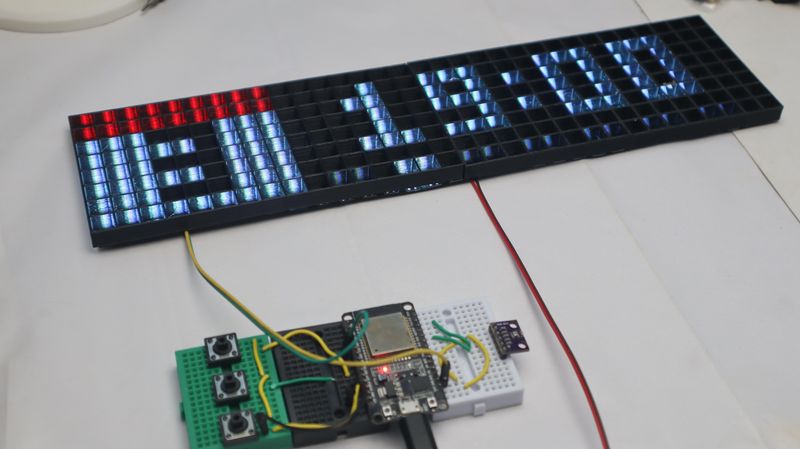
Build an LED Word Clock
Time displayed in glowing letters behind frosted acrylic.
What you’ll build
A beautiful word clock that shows the time in glowing LED letters behind frosted acrylic. It’s the kind of project that looks impressive on your shelf and teaches a lot about LEDs and timekeeping.
Before you start: Look at the clock above your desk or on your phone. Notice anything? The time doesn’t jump — it smoothly changes from one minute to the next. Your clock will do the same thing, but with light.
🤔 Challenge: Take a piece of paper and write “IT IS TEN FIFTEEN OCLOCK” with spaces between words. This is your LED layout — each word maps to a group of LEDs. Design your own layout if you prefer a different style.
What you need
| Part | What it does |
|---|---|
| ESP32 dev board | The brain |
| WS2812B LED strip (288 LEDs) | The letters and border |
| RTC module (DS3231) | Keeps time (even when powered off) |
| Frosted acrylic panel | Diffuses the light |
| 3D-printed frame | Holds everything |
| Jumper wires | Connections |
| USB-C cable | Power |
💡 The RTC module has a coin cell battery backup. This means it keeps time even when the ESP32 is unplugged. Without it, your clock would reset to 00:00 every time you unplug it.
Step 1: Plan your letter layout
Before wiring anything, decide which LEDs light up for each word. A standard layout:
  IT IS     TEN    FIVE    TWENTY
  [ ] [ ]   [ ]    [ ]     [ ]
  0-7       10-13  14-17   18-23

  TWENTY   THREE   FOUR    ONE
  [ ]      [ ]     [ ]     [ ]
  24-28    29-33   34-37   38-41

  OCLOCK    ONE    TWO     SIX
  [ ]       [ ]    [ ]     [ ]
  42-49    50-53   54-57   58-61

  [brightness bar] [status LEDs]
  62-79              80+
🤔 Why this order? It reads top-to-bottom, left-to-right — just like reading. “IT IS TEN FIFTEEN” maps to the top row, and so on. Each bracket number is a group of LEDs that light up together.
💡 Try this: Draw your own layout on paper. Make it simpler (fewer words) or more complex (add days of the week). The code just needs to know which LEDs light up for each word.
Step 2: Wire the LED strip
  ESP32              WS2812B Strip
  ──────              ──────────────
  5V ─────────────→ VCC (red)
  GND ────────────→ GND (white)
  GPIO 12 ───────→ DIN (green)
⚠️ Power note: 80 LEDs at full white draw about 800mA. The ESP32’s 5V pin can supply about 500mA. For 80 LEDs, it should work but use a separate 5V supply if you add more LEDs or want all-white display.
Step 3: Wire the RTC module
The RTC uses I2C — the same two wires as the OLED (if you add one later):
  ESP32          RTC Module
  ──────          ──────────
  3.3V ──────────→ VCC
  GND  ──────────→ GND
  GPIO 21 ───────→ SDA
  GPIO 22 ───────→ SCL
🤔 What is a RTC? Real Time Clock — a small chip that keeps track of time, even when your main board is off. It has a tiny battery (like a watch battery) that keeps it running. The DS3231 is accurate to ±2 ppm — about 1 minute per month.
Step 4: First light test
Before worrying about what time it is, make sure the LEDs work:
#include <FastLED.h>

#define NUM_LEDS 80
#define DATA_PIN 12

CRGB leds[NUM_LEDS];

void setup() {
  FastLED.addLeds<WS2812B, DATA_PIN, GRB>(leds, NUM_LEDS);
  FastLED.setBrightness(60); // 60% brightness (comfortable for indoors)

  // Turn all LEDs green for 2 seconds
  fill_solid(leds, NUM_LEDS, CRGB::Green);
  FastLED.show();
  delay(2000);

  // Turn them off
  fill_solid(leds, NUM_LEDS, CRGB::Black);
  FastLED.show();
}

void loop() {}
🤔 Why
GRBinstead ofRGB? WS2812B LEDs expect data in Green-Red-Blue order, not the more intuitive Red-Green-Blue. FastLED handles this withGRBin the template. If your colours look wrong (red looks green), tryRGBinstead — some strips use different orderings.
Step 5: Show the time
#include <FastLED.h>
#include <RTClib.h>

RTC_DS3231 rtc;

void showTime(int hour, int minute) {
  fill_solid(leds, NUM_LEDS, CRGB::Black); // start dark

  // This maps LED groups to time words
  // Hour LEDs (simplified example):
  if (hour == 1 || hour == 13) { // 1 OCLOCK
    for (int i = 38; i <= 41; i++) leds[i] = CRGB::Green;
  } else if (hour == 2) {
    for (int i = 54; i <= 57; i++) leds[i] = CRGB::Green;
  }
  // ... (more hours)

  // Minute LEDs (simplified):
  if (minute < 5) {
    // "IT IS" and the hour
  } else if (minute < 10) {
    // "FIVE PAST"
  } else if (minute < 15) {
    // "TEN PAST"
  } else if (minute < 20) {
    // "QUARTER PAST"
  }
  // ... (more minute groups)

  FastLED.show();
}
What this does:
- Starts with all LEDs off (black)
- Lights up specific LED groups based on the hour and minute
- Calls
FastLED.show()to actually display the pattern
🤔 This is the hardest part. Mapping each minute to the right word group is tedious but straightforward. Copy the layout from Step 1 into your code and assign LED numbers to each word group. Start with just “IT IS” and one hour — get that working, then add more.
Step 6: Full clock code (simplified)
void setup() {
  FastLED.addLeds<WS2812B, DATA_PIN, GRB>(leds, NUM_LEDS);
  FastLED.setBrightness(60);
  rtc.begin();
}

void loop() {
  DateTime now = rtc.now();
  showTime(now.hour(), now.minute());

  // Sync time from WiFi every hour (optional)
  if (now.minute() == 0) {
    // Code to set RTC from WiFi time
  }

  delay(10000); // update every 10 seconds
}
Step 7: Assemble it
  ┌─────────────────────────────────────────┐
  │                                         │
  │  ┌─────────────────────────────────┐   │
  │  │      3D-PRINTED FRAME           │   │
  │  │                                   │   │
  │  │  ┌─────────────────────────┐    │   │
  │  │  │   FROSTED ACRYLIC       │    │   │
  │  │  │   (light diffuser)      │    │   │
  │  │  └─────────────────────────┘    │   │
  │  │                                   │   │
  │  │  ┌─────────────────────────┐    │   │
  │  │  │   LED STRIP             │    │   │
  │  │  │   (glued inside back)    │    │   │
  │  │  └─────────────────────────┘    │   │
  │  │                                   │   │
  │  │  ┌─────────────────────────┐    │   │
  │  │  │   ESP32 + RTC           │    │   │
  │  │  └─────────────────────────┘    │   │
  │  └─────────────────────────────────┘   │
  │                  ↓ USB-C                │
└─────────────────────────────────────────┘- Glue the LED strip inside the back panel (facing forward)
- Place the frosted acrylic in front of the LEDs (this makes the light even, not individual dots)
- Mount the ESP32 and RTC inside the back section
- Close the frame
💡 The frosted acrylic is what makes it look professional. Without it, you’d see individual LED dots. With it, the light blends into smooth glowing letters. You can frost acrylic yourself by spraying it with frosted glass spray paint.
Troubleshooting
LEDs don’t light up?
- Check DIN → GPIO 12 (not 5V or GND)
- Check FastLED is installed
- Try reducing brightness to 30 (some strips need less power)
Time is wrong after power off?
- Check the RTC battery (CR2032 coin cell)
- Some modules don’t ship with a battery — check the product listing
Letters show in wrong positions?
- Your LED numbering might not match the layout
- Number the LEDs physically: LED 0 is the first one after DIN. Mark them with tape while testing.
What’s next?
Build the DIY Weather Station — the first project in the DIY collection.
$ ./shop-this-guide
Built, tested and ready to go on this site.
$ ./read-next
Build a Music Visualizer
Reactive LED strip driven by microphone and ESP32.
intermediateCyberdeck Wireless Remote: Home Automation Guide
Build a relay controller and LED strip driver in a cyberpunk case. Control lights from your phone, build HTTP APIs, learn home automation.
intermediateBuild a Game Controller
USB gamepad with arcade buttons, joystick and 3D-printed case.