Build a Music Visualizer
Reactive LED strip driven by microphone and ESP32.
What you’ll build
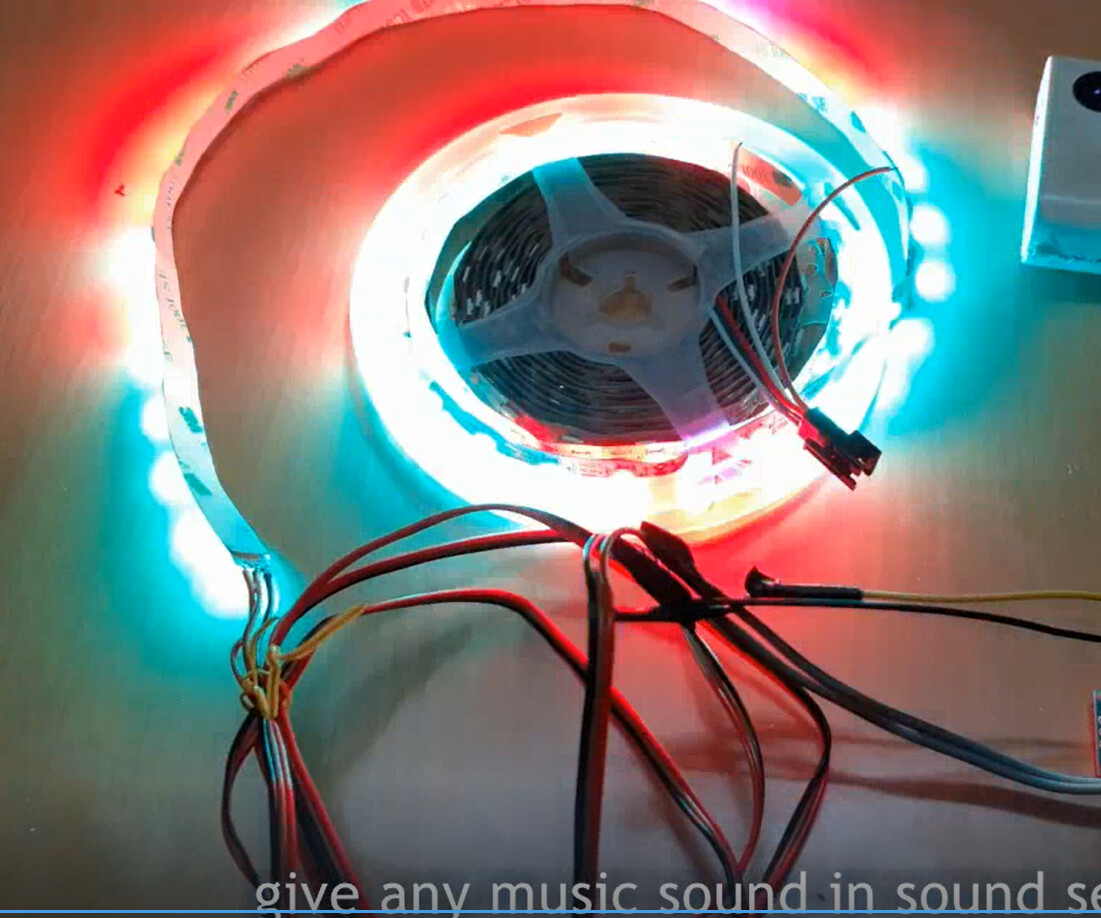
A strip of LEDs that dances to music in real time. You’ll learn how sound becomes light using a microphone, a microcontroller, and some clever code.
Before you start: Clap your hands near a desk lamp with a colour-changing bulb (if you have one). Notice how some lights react to sound? That’s exactly what you’re building — but better.
🤔 Challenge: Look at a music visualizer online (search “music visualizer GIF”). How many different patterns do you see? Bars, circles, waves? Your project will do all of these with code.
What you need
| Part | What it does |
|---|---|
| ESP32 dev board | The brain |
| WS2812B LED strip (60 LEDs) | The lights |
| Microphone module | Detects sound |
| 3D-printed housing | Holds everything |
| Jumper wires | Connections |
| USB-C cable | Power |
💡 Important: Get a microphone module (like the MAX9814 or KY-038), NOT a raw microphone. Modules have amplification built in — a raw microphone won’t give useful readings.
Step 1: How sound becomes light
  Sound waves → Microphone → Electrical signal → ESP32 reads it
                                                    ↓
                                              Analyse frequency
                                                    ↓
                                              Light up LEDs
Your microphone converts sound waves into a small voltage. The ESP32 reads this voltage thousands of times per second. When the voltage changes a lot (loud sound), more LEDs light up.
🤔 Test it now: Open Arduino IDE, paste
Serial.println(analogRead(A0));in your loop, and upload. Open Serial Monitor (9600 baud). Now clap, talk, play music — watch the numbers change. Louder = higher numbers.
Step 2: Wire the microphone
The microphone module has 3 pins: VCC, GND, OUT.
  Microphone Module
  VCC → 3.3V
  GND → GND
  OUT → A0 (analog input)
💡 Why A0? The OUT pin outputs a voltage between 0V and 3.3V. The ESP32’s analog-to-digital converter reads this as a number between 0 and 4095. Higher voltage = louder sound = higher number.
Step 3: Wire the LED strip
  WS2812B Strip (60 LEDs)
  ┌──────────────────────────────────────┐
  │ ● ● ● ● ● ● ● ● ● ● ● ● ● ● ● ● │
  │ ↑                                ↑        │
  │ DIN                         end         │
  └──┬───────────────────────────────────┘
     │
    VCC (5V)       GND (GND)      DIN (data)
     │                │                │
     └──── 5V pin ────┘                │
                                       │
GPIO 12| Strip Wire | ESP32 Pin | Purpose |
|---|---|---|
| DIN (green) | GPIO 12 | Data signal |
| VCC (red) | 5V | Power |
| GND (white) | GND | Ground |
⚠️ Power warning: 60 LEDs at full white can draw 600mA! Use the ESP32’s 5V pin for small strips (up to 50 LEDs). For more, use a separate 5V power supply.
Step 4: The VU meter
Before fancy frequency analysis, let’s get reactive LEDs working:
#include <FastLED.h>
#define NUM_LEDS 60
#define DATA_PIN 12
#define MIC_PIN A0

CRGB leds[NUM_LEDS];

void loop() {
  // Read the microphone 50 times and average
  long sum = 0;
  for (int i = 0; i < 50; i++) {
    sum += analogRead(MIC_PIN);
    delay(2);
  }
  int average = sum / 50;

  // Volume = how far from silence (silence = 512)
  int volume = abs(average - 512);

  // Map volume to number of lit LEDs (0-60)
  int lit = map(volume, 0, 200, 0, NUM_LEDS);
  lit = constrain(lit, 0, NUM_LEDS);

  // Light up LEDs — green at bottom, red at top
  for (int i = 0; i < NUM_LEDS; i++) {
    if (i < lit) {
      float ratio = (float)i / NUM_LEDS;
      uint8_t r = ratio * 255;
      uint8_t g = (1.0 - ratio) * 255;
      leds[i] = CRGB(r, g, 0);
    } else {
      leds[i] = CRGB::Black;
    }
  }

  FastLED.show();
  delay(30);
}
What each part does:
analogRead(MIC_PIN)— reads the microphone voltage (0-4095)abs(average - 512)— how far from the middle (silence). Clapping gives 100+, silence gives 0-5map(volume, 0, 200, 0, NUM_LEDS)— converts 0-200 volume to 0-60 LEDs- The colour gradient — green at low LEDs, red at high ones (like a VU meter)
🤔 Test it now: Upload and clap. The LEDs should light up from bottom to top. If they don’t light up at all, check that DIN goes to GPIO 12 (not 5V or GND!).
💡 Try this: Change
CRGB(r, g, 0)toCRGB::Bluefor all blue, or tryCHSV((uint8_t)(i * 5), 255, 255)for rainbow colours.
Step 5: Add frequency analysis
Want bars like professional visualizers? Add FastLED’s FFT (Fast Fourier Transform):
#include <FastLED.h>
#include "FFTReal.h" // Install via GitHub: earlephilhower/FFTReal

#define FFT_SIZE 64
float timeDomain[FFT_SIZE];
float freqDomain[FFT_SIZE];

void loop() {
  // Sample the microphone into the time domain
  for (int i = 0; i < FFT_SIZE; i++) {
    timeDomain[i] = (analogRead(MIC_PIN) - 512) / 200.0;
    delayMicroseconds(100);
  }

  // Run FFT — converts time data to frequency data
  FFTReal::forward(timeDomain, freqDomain, FFT_SIZE);

  // Map 12 frequency bands to LED groups
  int bands = 12;
  int ledsPerBand = NUM_LEDS / bands;

  for (int b = 0; b < bands; b++) {
    float magnitude = 0;
    int start = b * (FFT_SIZE / 2 / bands);
    int end = start + (FFT_SIZE / 2 / bands);

    for (int f = start; f < end; f++) {
      magnitude += freqDomain[f] * freqDomain[f];
    }
    magnitude = sqrt(magnitude);

    int brightness = constrain(magnitude * 200, 0, 255);

    // Light up this band's LEDs with a unique colour
    for (int l = 0; l < ledsPerBand; l++) {
      int idx = b * ledsPerBand + l;
      if (idx < NUM_LEDS) {
        leds[idx] = CHSV(200 + b * 5, 255, brightness);
      }
    }
  }

  FastLED.show();
  delay(30);
}
🤔 What does FFT do? It splits a sound wave into its individual frequencies. Bass sounds (low frequency) become the first few bars. Treble sounds (high frequency) become the last bars. This is how professional music visualizers work!
Step 6: Assemble it
- Print or build a housing with a frosted diffuser
- Mount LED strip inside, facing the diffuser
- Mount microphone pointing out (with a small hole)
- Put ESP32 inside
- Close the housing
🤔 Diffuser idea: Frosted acrylic, baking paper, or even a white ping-pong ball cut in half. Anything that scatters the light.
Troubleshooting
No sound reaction?
- Check microphone OUT goes to A0 (not D0 or a digital pin)
- Open Serial Monitor and verify the numbers change when you make noise
LEDs don’t light?
- Check DIN → GPIO 12 (not 5V!)
- Verify FastLED is installed in Arduino IDE libraries
- Check power supply — too many LEDs need more current
FFT crashes or gives weird results?
- Make sure FFTReal library is installed
- Try reducing FFT_SIZE to 32
What’s next?
Build the Network Status Monitor — LEDs that tell you if your internet is working.
$ ./shop-this-guide
Built, tested and ready to go on this site.
$ ./read-next
Build an LED Word Clock
Time displayed in glowing letters behind frosted acrylic.
intermediateCyberdeck Wireless Remote: Home Automation Guide
Build a relay controller and LED strip driver in a cyberpunk case. Control lights from your phone, build HTTP APIs, learn home automation.
intermediateBuild a Game Controller
USB gamepad with arcade buttons, joystick and 3D-printed case.