Build a Plant Monitor
Soil moisture sensor, OLED display and watering alerts.
What you’ll build
A small station that sits next to your plant and tells you when it’s thirsty. You’ll learn how a moisture sensor works, how to read analog signals, and how to display data.
Before you start: Touch a leaf — does it feel dry or moist? Now stick your finger in the soil. Dry soil feels gritty, wet soil feels smooth and cold. Your sensor works the same way — it measures how easily electricity flows through the soil. More water = better conductor = lower reading.
What you need
| Part | What it does |
|---|---|
| ESP32 dev board | The brain |
| Capacitive soil moisture sensor | Detects wet or dry soil |
| 0.96” OLED display | Shows the moisture level |
| Breadboard + wires | Connections |
| USB-C cable | Power |
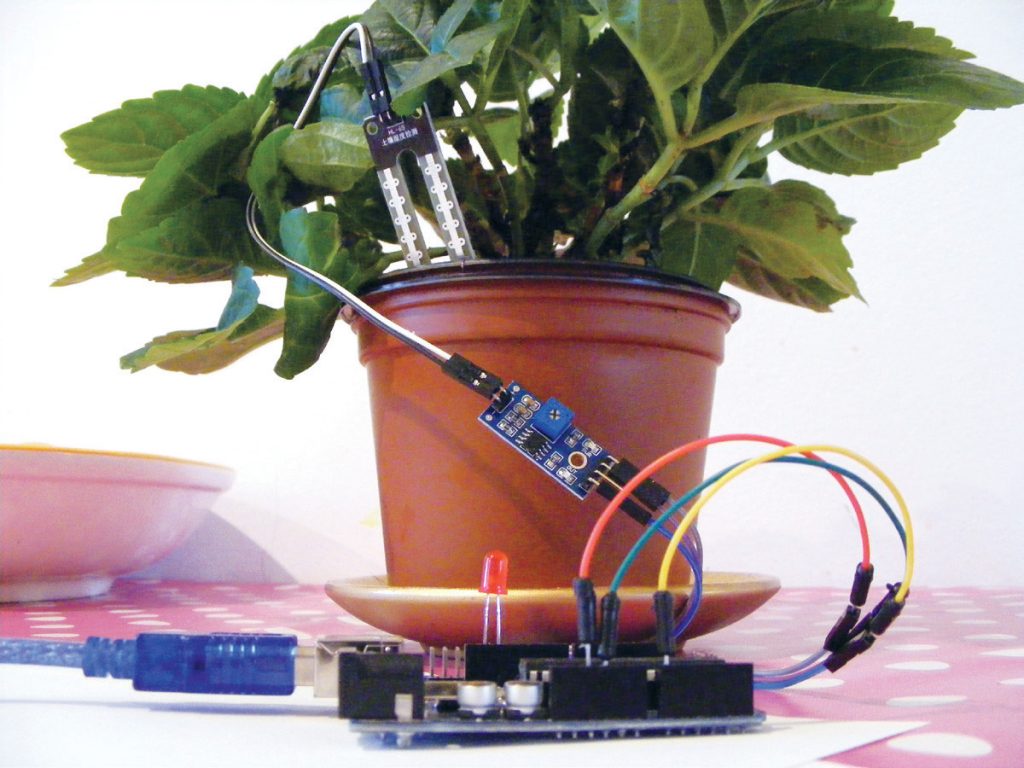
💡 Important: Get a capacitive moisture sensor, not a resistive one. Capacitive sensors don’t corrode — resistive ones rust in the soil after a few weeks. They look similar but the capacitive one has a smooth white PCB, not exposed metal prongs.
Step 1: Understand the sensor
The moisture sensor has 3 pins: VCC (power), GND (ground), AO (analog output). AO sends a number from 0 to 4095 to the ESP32 based on how wet the soil is.
  Wet soil = low number (around 800)
  Dry soil = high number (around 1500+)
🤔 Test it now: Unplug the sensor, stick the probe in a glass of water, then into dry soil. Open the Serial Monitor on your ESP32 (9600 baud). What numbers do you see? Write them down — you’ll need them to calibrate your alert level.
Step 2: Wire it up
The moisture sensor connects to an analog pin (A0), while the OLED uses I2C:
  ESP32           Breadboard           Moisture Sensor    OLED
  ──────           ──────────           ──────────────     ────
  3.3V  ──────→   + rail     ──────→  VCC              VCC
  GND   ──────→   - rail     ──────→  GND              GND
  A0    ──────→   ··· row    ──────→  AO
  GPIO21──→    [shared SDA wire]──→  SDA
  GPIO22──→    [shared SCL wire]──→  SCL
💡 Wire colour reminder: Red = 3.3V power, Black = GND, Blue = analog signal (AO), Yellow = SDA, Green = SCL.
🤔 Why does the moisture sensor use A0 but the OLED uses GPIO 21/22? They use different communication methods. The sensor sends a simple voltage level (analog), while the OLED talks in I2C (digital). They’re like different languages — the ESP32 speaks both, so it can handle both at the same time.
Step 3: Read the sensor
void setup() {
  Serial.begin(115200);
}

void loop() {
  int raw = analogRead(A0);          // read the sensor (0-4095)
  int moisture = map(raw, 1500, 800, 0, 100); // convert to percentage
  moisture = constrain(moisture, 0, 100); // don't go above 100% or below 0%

  Serial.print("Moisture: ");
  Serial.print(moisture);
  Serial.println("%");
  delay(2000);
}
What each line does:
analogRead(A0)— reads voltage on pin A0 (0 to 4095)map(value, 1500, 800, 0, 100)— converts 1500→0% and 800→100%. Any value between scales proportionallyconstrain(...)— clamps the number between 0 and 100, just in case
🤔 Why
map(raw, 1500, 800, 0, 100)and not the other way around? Because dry soil gives a HIGH number (1500) which should be LOW moisture (0%). Wet soil gives a LOW number (800) which should be HIGH moisture (100%). So we’re mapping in reverse.
💡 Calibration: Use the numbers you recorded in Step 1. If your dry soil reads 2000, use
map(raw, 2000, 600, 0, 100)instead. Adjust until it feels right for your plant.
Step 4: Add the OLED display
Replace the Serial Monitor output with a display:
#include <Adafruit_SSD1306.h>
Adafruit_SSD1306 display(128, 64, &Wire, -1);

void displayMoisture(int moisture) {
  display.clearDisplay();
  display.setCursor(0, 0);
  display.println("Plant Monitor");

  // Draw a progress bar
  display.drawRect(0, 10, 64, 10, SSD1306_WHITE);
  int fill = map(moisture, 0, 100, 0, 64);
  display.fillRect(0, 10, fill, 10, SSD1306_WHITE);

  // Show the number
  display.setTextSize(2);
  display.setCursor(0, 28);
  display.print(moisture);
  display.println("%");

  // Alert if too dry
  if (moisture < 30) {
    display.setCursor(0, 50);
    display.println("!! WATER NOW !!");
  } else {
    display.setCursor(0, 50);
    display.println("All good!");
  }

  display.display();
}
🤔 What does
map(moisture, 0, 100, 0, 64)do? It converts the moisture percentage (0-100) to the display width (0-64 pixels). If moisture is 50%, fill 32 pixels — half the bar.
💡 Try this: Change
moisture < 30tomoisture < 50. Now the alert triggers earlier. Is that better or worse for your plant?
Step 5: Check automatically
Instead of checking manually, make it check every 15 minutes:
unsigned long lastCheck = 0;

void loop() {
  if (millis() - lastCheck > 15 * 60 * 1000) { // 15 minutes in milliseconds
    lastCheck = millis();
    int moisture = readMoisture(); // your function
    displayMoisture(moisture);
  }
}
💡 Tip: 15 minutes is good for most plants. For thirsty plants like ferns, check every 5 minutes. For cacti, every hour is plenty.
Step 6: Assemble it
- Put the ESP32 and sensor board inside a small box or 3D-printed station
- Mount the OLED facing out (you can see it)
- Route the moisture probe through a hole in the side
- Push the probe into the soil next to your plant’s roots
- Power via USB-C
🤔 Where should the probe go? Near the roots, not in direct sunlight. If you have a deep pot, the probe should go in the upper half of the soil where roots are most active.
Troubleshooting
Sensor reads 0% all the time?
- Make sure the probe is actually in soil (not in air)
- Check that AO goes to pin A0 on the ESP32
Display shows “All good” even when soil is dry?
- Your calibration numbers might be swapped
- Check: dry soil should give a HIGH number (more than 1000)
- Adjust the
map()range in your code
Sensor corrosion after a few weeks?
- Make sure you’re using a capacitive sensor, not resistive
- Capacitive sensors have a smooth white PCB, no exposed metal
What’s next?
Build the Music Visualizer — add a microphone and LEDs to see your music.
$ ./shop-this-guide
Built, tested and ready to go on this site.