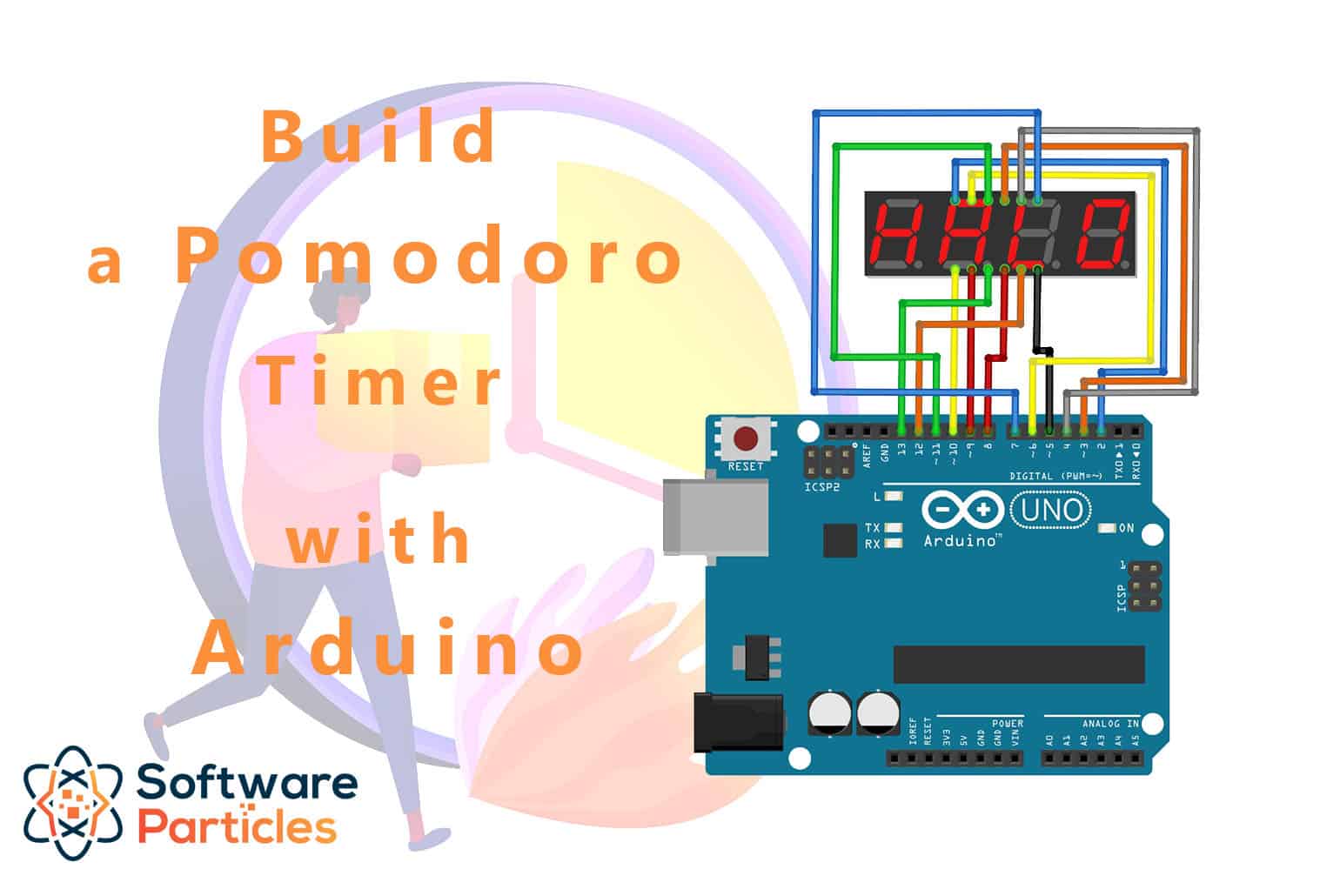
Build a Pomodoro Timer
Physical button timer for focused work sessions with OLED display and buzzer.
What you need
From the Starter Pack: ESP32, breadboard, wires, USB-C cable.
From this kit: 2x tactile buttons, 0.96” OLED, piezo buzzer, 3D-printed case.
Step 1: Wire the buttons
Two buttons: one to start/stop, one to take a break. Both use INPUT_PULLUP:
   Buttons:
   ┌──────────────────────────────────────────┐
   │  - - - - - - - - - - - - - - - - - - -  │ ← GND rail
   │  · · · · · · · · · · · · · · · · · · ·  │
   │  · · · [START/BREAK]─ · · · · · · · ·  │ ← GPIO 4
   │  · · · · · · · · · · · · · · · · · · ·  │
   │  · · · [SKIP]─ · · · · · · · · · · · ·  │ ← GPIO 5
   │  · · · · · · · · · · · · · · · · · · ·  │
   │  · · · · · · · · · · · · · · · · · · ·  │
   │  · · · · · · · · · · · · · · · · · · ·  │
   │  · · · · · · · · · · · · · · · · · · ·  │
   │  + + + + + + + + + + + + + + + + + + +  │ ← 3.3V rail
   │  - - - - - - - - - - - - - - - - - - -  │ ← GND
   └──────────────────────────────────────────┘

   Pin mapping:
   ┌────────────┬────────────┐
   │ Button     │ ESP32 Pin  │
   ├────────────┼────────────┤
   │ Start/Break│ GPIO 4     │
   │ Skip       │ GPIO 5     │
   │ All GND    │ GND        │
   └────────────┴────────────┘
Step 2: Wire the OLED display
Standard I2C:
   ┌─────────────────────────────────────────┐
   │                                         │
   │  ESP32                                 │
   │  ┌──────────────────────────────────┐  │
   │  │  3.3V ────────┬───────────────│  │
   │  │  GND  ────────┼───────────────│  │
   │  │  GPIO 21 ─────┤─── SDA         │  │
   │  │  GPIO 22 ─────┤─── SCL         │  │
   │  └───────────────┴───────────────┘  │
   └─────────────────────────────────────────┘

   Pin mapping:
   ┌────────────┬────────────┐
   │ OLED Pin   │ ESP32 Pin  │
   ├────────────┼────────────┤
   │ VCC        │ 3.3V       │
   │ GND        │ GND        │
   │ SDA        │ GPIO 21    │
   │ SCL        │ GPIO 22    │
   └────────────┴────────────┘
Step 3: Wire the buzzer
   Buzzer (session alerts):
   ┌───────────────────────────────────────┐
   │                                       │
   │  ESP32 GPIO 7 ──── ┌──────┐          │
   │                    │ BUZ+ │          │
   │                    │  ○   │          │
   │                    │  ○───┼──→ GND   │
   │                    └──────┘          │
   └───────────────────────────────────────┘

   Pin mapping:
   ┌────────────┬────────────┐
   │ Buzzer Pin │ ESP32 Pin  │
   ├────────────┼────────────┤
   │ Positive   │ GPIO 7     │
   │ Negative   │ GND        │
   └────────────┴────────────┘
Step 4: Full wiring diagram
   ┌─────────────────────────────────────────────────────┐
   │                                                         │
   │  ESP32                                                  │
   │  ┌─────────────────────────────────────────────┐    │
   │  │ 3.3V  ─────→  OLED VCC + 3.3V rail       │    │
   │  │ GND   ─────→  OLED GND + all button GND   │    │
   │  │       ─────→  Buzzer GND                   │    │
   │  │ GPIO 4 ←────  Start/Break Button           │    │
   │  │ GPIO 5 ←────  Skip Button                  │    │
   │  │ GPIO 7 ─────→ Buzzer + (sound)             │    │
   │  │ GPIO 21 ←───  OLED SDA                     │    │
   │  │ GPIO 22 ←───  OLED SCL                     │    │
   │  └─────────────────────────────────────────────┘    │
   │                                                         │
   └─────────────────────────────────────────────────────┘

   Breadboard view:
   ┌──────────────────────────────────────────┐
   │  + + + + + + + + + + + + + + + + + + +  │ ← 3.3V
   │  - - - - - - - - - - - - - - - - - - -  │ ← GND
   │  · · · · · · · · · · · · · · · · · · ·  │
   │  · · · [SBtn]─ · · · · [Skip]─ · · ·  │ ← Buttons
   │  · · · · · · · · · · · · · · · · · · ·  │
   │  · · · · · · · · · · · · · · · · · · ·  │
   │  · · · · · · · · · [BUZ+]· · · · · ·  │ ← Buzzer
   │  · · · · · · · · · · · · · · · · · · ·  │
   │  · · · [SDA]─[SCL]─ · · · · · · · ·  │ ← OLED
   │  · · · · · · · · · · · · · · · · · · ·  │
   │  + + + + + + + + + + + + + + + + + + +  │ ← 3.3V
   │  - - - - - - - - - - - - - - - - - - -  │ ← GND
   └──────────────────────────────────────────┘
Step 5: Install libraries
- Sketch → Include Library → Manage Libraries
- Search and install: Adafruit SSD1306
- Search and install: Adafruit GFX Library
Step 6: Timer state machine
The timer has three states: idle, working, break:
enum State { IDLE, WORKING, BREAK };

struct Timer {
  State state = IDLE;
  int remaining = 0;         // seconds left
  int workDuration = 25 * 60; // 25 minutes
  int breakDuration = 5 * 60; // 5 minutes
  int sessionsToday = 0;
  int focusMinutesToday = 0;
};

Timer timer;
unsigned long lastTick = 0;

void tick() {
  if (millis() - lastTick >= 1000) { // every second
    lastTick = millis();

    if (timer.state == WORKING || timer.state == BREAK) {
      timer.remaining--;

      if (timer.remaining <= 0) {
        // Session complete
        tone(7, 880, 300); // beep
        delay(400);
        tone(7, 1100, 300); // higher beep
        delay(400);

        if (timer.state == WORKING) {
          timer.sessionsToday++;
          timer.focusMinutesToday += timer.workDuration / 60;
          timer.state = BREAK;
          timer.remaining = timer.breakDuration;
        } else {
          timer.state = IDLE;
          timer.remaining = 0;
        }
      }
    }
  }
}
Result: The timer decrements every second and transitions between states automatically.
Step 7: Display the timer
void displayTimer() {
  display.clearDisplay();
  display.setTextSize(1);

  // Title
  display.setCursor(0, 0);
  if (timer.state == WORKING) {
    display.println("FOCUS");
  } else if (timer.state == BREAK) {
    display.println("BREAK");
  } else {
    display.println("READY");
  }

  // Time (MM:SS)
  int minutes = timer.remaining / 60;
  int seconds = timer.remaining % 60;

  display.setTextSize(3);
  display.setCursor(0, 15);
  if (minutes < 10) display.print("0");
  display.print(minutes);
  display.print(":");
  if (seconds < 10) display.print("0");
  display.print(seconds);

  // Separator line
  display.setTextSize(1);
  display.drawLine(0, 60, 128, 60, SSD1306_WHITE);

  // Stats
  display.setCursor(0, 62);
  display.print("Sessions: ");
  display.println(timer.sessionsToday);
  // Truncated for space

  display.display();
}
Result: Large countdown timer in the center, showing the current mode (FOCUS/BREAK/READY) above it, and sessions below.
Step 6: Handle buttons
const int BUTTON_START = 4;
const int BUTTON_SKIP = 5;

void checkButtons() {
  if (digitalRead(BUTTON_START) == LOW) {
    if (timer.state == IDLE) {
      // Start the current mode
      timer.remaining = timer.workDuration;
      timer.state = WORKING;
      tone(7, 440, 100);
    } else {
      // Go back to idle
      timer.state = IDLE;
      timer.remaining = 0;
      tone(7, 220, 100);
    }
    delay(200); // debounce
  }

  if (digitalRead(BUTTON_SKIP) == LOW) {
    // Skip to next session
    tone(7, 660, 100);

    if (timer.state == WORKING) {
      timer.sessionsToday++;
      timer.focusMinutesToday += timer.workDuration / 60;
      timer.state = BREAK;
      timer.remaining = timer.breakDuration;
    } else if (timer.state == BREAK) {
      timer.state = IDLE;
      timer.remaining = 0;
    } else {
      // Start work
      timer.remaining = timer.workDuration;
      timer.state = WORKING;
    }
    delay(200);
  }
}
Step 9: Main loop
void setup() {
  display.begin(SSD1306_SWITCHCAPVCC, 0x3C);
  pinMode(BUTTON_START, INPUT_PULLUP);
  pinMode(BUTTON_SKIP, INPUT_PULLUP);
  display.println("Pomodoro");
  display.display();
  delay(1500);
}

void loop() {
  tick();
  checkButtons();
  displayTimer();
}
Result: Press START — timer begins counting down. Press SKIP — jump to next session. The display shows your focus time and session count.
Step 10: Assemble the timer
   Pomodoro Timer Assembly:
   ┌─────────────────────────────────────────┐
   │                                         │
   │  ┌─────────────────────────────────┐  │
   │  │    3D-PRINTED DESK CASE      │  │
   │  │    (clean, minimal design)    │  │
   │  │                                 │  │
   │  │  ┌─────────────────────────┐   │  │
   │  │  │      OLED DISPLAY       │   │  │
   │  │  │  (shows countdown)      │   │  │
   │  │  └─────────────────────────┘   │  │
   │  │                                 │  │
   │  │  [START/BREAK]  [SKIP]       │   │  │ ← Two buttons
   │  │                                 │  │
   │  │  ┌─────────────────────────┐   │  │
   │  │  │  ESP32 + Buzzer          │   │  │
   │  │  └─────────────────────────┘   │  │
   │  └─────────────────────────────────┘  │
   │                     ↓ USB-C             │
└─────────────────────────────────────────┘- Mount the OLED into the top slot
- Place both buttons on the front face below the screen
- Put the ESP32 and buzzer inside
- Wire everything up
- Close the case, power via USB-C
Customise it
- Change session lengths (e.g., 50 min work + 10 min break)
- Add long break after 4 sessions (15-30 minutes)
- Display the current time in addition to the countdown
- Add a quiet mode (no buzzer, only screen)
What’s next?
That’s all 11 guides done! Browse the store for the kits and build them all.
$ ./shop-this-guide
Built, tested and ready to go on this site.