Welcome to the Lab: Starter Pack Build Guide
Your first electronics project — unbox, wire, flash, and play. Everything you need to know to get your Trainer's Lab Starter Pack running.
What you got
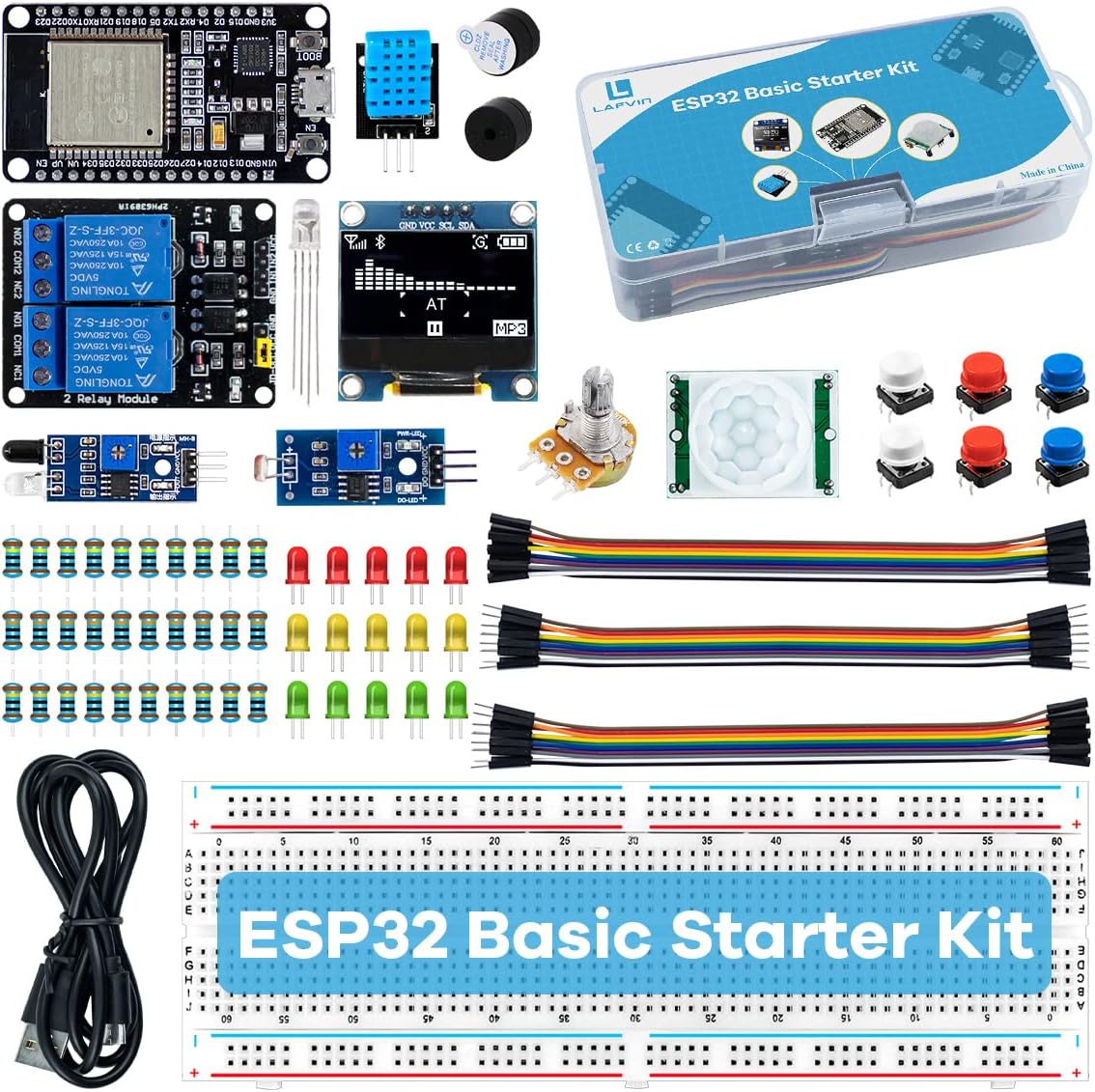
Open the box and check you’ve got everything:
┌─────────────────────────────────────────────────────┐
│  TRAINER'S LAB STARTER PACK                         │
├─────────────────────────────────────────────────────┤
│  ✓ ESP32 dev board          ✓ USB-C cable           │
│  ✓ Breadboard (full-size)   ✓ 3x LEDs (R/B/G)      │
│  ✓ Jumper wire kit          ✓ 3x tactile buttons    │
│  ✓ Piezo buzzer             ✓ Resistors (220Ω etc)  │
│  ✓ Hookup wire              ✓ 3D-printed base       │
│  ✓ Collectable Trainer Card                         │
└─────────────────────────────────────────────────────┘
Missing something? Message us on WhatsApp.
Step 1: Install Arduino IDE
- Download Arduino IDE from arduino.cc/en/software
- Install it like any other app
- Open it — you should see a blank sketch
Step 2: Install ESP32 board support
- Go to File → Preferences
- In “Additional Boards Manager URLs”, paste:
https://dl.espressif.com/dl/package_esp32_index.json - Go to Tools → Board → Boards Manager
- Search for “esp32” and install esp32 by Espressif Systems
- Go to Tools → Board and select ESP32 Dev Module
Step 3: Connect your ESP32
- Plug the ESP32 into your computer with the USB-C cable
- Go to Tools → Port and select the COM port that appeared
- Windows:
COM3,COM4, etc. - Mac:
/dev/cu.usbserial-*or/dev/cu.SLAB_USBtoUART - Linux:
/dev/ttyUSB0or/dev/ttyACM0
- Windows:
Step 4: Blink an LED
This is the “hello world” of electronics.
Wire it up
    ESP32 Board
   ┌──────────┐
   │          │
   │  GPIO 2 ├───────┬───────[220Ω]───────┤▶├──── GND
   │          │       │                    LED
   │  GND     ├───────┘
   │          │
   └──────────┘

   Breadboard view:
   ┌─────────────────────────────────────────┐
   │  + + + + + + + + + + + + + + + + + + +  │ ← power rail
   │  - - - - - - - - - - - - - - - - - - -  │ ← ground rail
   │  · · · · · · · · · · · · · · · · · · ·  │
   │  · · · · · · · · · · · · · · · · · · ·  │
   │  · · · · · · · · · · · · · · · · · · ·  │
   │  · · · · · · · · · · · · · · · · · · ·  │
   │  · · · · · · · · · · · · · · · · · · ·  │
   │  · · · · · · · · · · · · · · · · · · ·  │
   │  · · · · · · · · · · · · · · · · · · ·  │
   │  · · · · · · · · · · · · · · · · · · ·  │
   │  · · · · · · · · · · · · · · · · · · ·  │
   │  + + + + + + + + + + + + + + + + + + +  │
   │  - - - - - - - - - - - - - - - - - - -  │
   └─────────────────────────────────────────┘

   Components on breadboard:
   ┌─────────────────────────────────────────┐
   │  + + + + + + + + + + + + + + + + + + +  │
   │  - - - - - - - - - - - - - - - - - - -  │
   │  · · · · · · · · · · · · · · · · · · ·  │
   │  · · · · · · · [R]─ · ┤▶├ · · · · · ·  │
   │  · · · · · · ·  220Ω  LED  · · · · · ·  │
   │  · · · · · · · · · · · · · · · · · · ·  │
   │  · · · · · · · · · · · · · · · · · · ·  │
   │  · · · · · · · · · · · · · · · · · · ·  │
   │  · · · · · · · · · · · · · · · · · · ·  │
   │  · · · · · · · · · · · · · · · · · · ·  │
   │  + + + + + + + + + + + + + + + + + + +  │
   │  - - - - - - - - - - - - - - - - - - -  │
   └─────────────────────────────────────────┘

   Pin mapping:
   ┌────────────┬────────────┐
   │ ESP32 Pin  │ Breadboard │
   ├────────────┼────────────┤
   │ GPIO 2     │ row 5      │
   │ GND        │ row 8      │
   └────────────┴────────────┘
What’s happening: GPIO 2 sends power through the 220Ω resistor (which limits current) to the LED’s anode (long leg). The LED’s cathode (short leg) connects to GND. When GPIO 2 is HIGH, current flows and the LED lights up.
Flash the code
void setup() {
  pinMode(2, OUTPUT);
}

void loop() {
  digitalWrite(2, HIGH);   // LED on
  delay(1000);              // wait 1 second
  digitalWrite(2, LOW);    // LED off
  delay(1000);              // wait 1 second
}
Click the upload button (→). If it says “Connecting…”, hold the BOOT button on the ESP32 until it starts uploading.
Result: Your LED blinks once per second.
Step 5: Read a button
Wire it up
    ESP32 Board
   ┌──────────┐
   │          │
   │  GPIO 4 ├───────┤ btn ├──── GND
   │          │       pin1  pin2
   │  GND     ├───────┘
   │          │
   └──────────┘

   Breadboard view:
   ┌─────────────────────────────────────────┐
   │  + + + + + + + + + + + + + + + + + + +  │
   │  - - - - - - - - - - - - - - - - - - -  │
   │  · · · · · · · · · · · · · · · · · · ·  │
   │  · · · · · · · · · · · · · · · · · · ·  │
   │  · · · · · · · · · · · · · · · · · · ·  │
   │  · · · · · · · · · · · · · · · · · · ·  │
   │  · · · · · · · · · · · · · · · · · · ·  │
   │  · · · · · · · · · · · · · · · · · · ·  │
   │  · · · · · · · · · · · · · · · · · · ·  │
   │  · · · · · · · · · · · · · · · · · · ·  │
   │  · · · · · · · · · · · · · · · · · · ·  │
   │  + + + + + + + + + + + + + + + + + + +  │
   │  - - - - - - - - - - - - - - - - - - -  │
   └─────────────────────────────────────────┘

   Button on breadboard:
   ┌─────────────────────────────────────────┐
   │  + + + + + + + + + + + + + + + + + + +  │
   │  - - - - - - - - - - - - - - - - - - -  │
   │  · · · · · · · · · · · · · · · · · · ·  │
   │  · · · · · · · · · · · · · · · · · · ·  │
   │  · · · · · · · · · · · · · · · · · · ·  │
   │  · · · · · · · · · · · · · · · · · · ·  │
   │  · · · · · · · · · · · · · · · · · · ·  │
   │  · · · · · · · · · · · · · · · · · · ·  │
   │  · · · · · [BTN] · · · · · · · · · · ·  │
   │  · · · · · · · · · · · · · · · · · · ·  │
   │  · · · · · · · · · · · · · · · · · · ·  │
   │  + + + + + + + + + + + + + + + + + + +  │
   │  - - - - - - - - - - - - - - - - - - -  │
   └─────────────────────────────────────────┘

   Pin mapping:
   ┌────────────┬────────────┐
   │ ESP32 Pin  │ Breadboard │
   ├────────────┼────────────┤
   │ GPIO 4     │ row 12     │
   │ GND        │ row 15     │
   └────────────┴────────────┘
What’s happening: The button bridges two rows on the breadboard. When pressed, it connects GPIO 4 to GND. The INPUT_PULLUP setting means GPIO 4 is normally HIGH (no press) and goes LOW when the button connects it to GND.
Flash the code
void setup() {
  pinMode(4, INPUT_PULLUP);
  Serial.begin(115200);
}

void loop() {
  if (digitalRead(4) == LOW) {
    Serial.println("Button pressed!");
  }
  delay(100);
}
Open Tools → Serial Monitor (115200 baud). Press the button — you’ll see “Button pressed!” appear.
Step 6: Play tones
Wire it up
    ESP32 Board
   ┌──────────┐
   │          │
   │  GPIO 5 ├───────┤ BUZ ├──── GND
   │          │       +    -
   │  GND     ├───────┘
   │          │
   └──────────┘

   Breadboard view:
   ┌─────────────────────────────────────────┐
   │  + + + + + + + + + + + + + + + + + + +  │
   │  - - - - - - - - - - - - - - - - - - -  │
   │  · · · · · · · · · · · · · · · · · · ·  │
   │  · · · · · · · · · · · · · · · · · · ·  │
   │  · · · · · · · · · · · · · · · · · · ·  │
   │  · · · · · · · · · · · · · · · · · · ·  │
   │  · · · · · · · · · · · · · · · · · · ·  │
   │  · · · · · · · · · · · · · · · · · · ·  │
   │  · · · · · · · · · · · · · · · · · · ·  │
   │  · · · · · · · · · · · · · · · · · · ·  │
   │  · · · · · · · · · · · · · · · · · · ·  │
   │  + + + + + + + + + + + + + + + + + + +  │
   │  - - - - - - - - - - - - - - - - - - -  │
   └─────────────────────────────────────────┘

   Buzzer on breadboard:
   ┌─────────────────────────────────────────┐
   │  + + + + + + + + + + + + + + + + + + +  │
   │  - - - - - - - - - - - - - - - - - - -  │
   │  · · · · · · · · · · · · · · · · · · ·  │
   │  · · · · · · · · · · · · · · · · · · ·  │
   │  · · · · · · · · · · · · · · · · · · ·  │
   │  · · · · · · · · · · · · · · · · · · ·  │
   │  · · · · · · · · · · · · · · · · · · ·  │
   │  · · · · · · · · · · · · · · · · · · ·  │
   │  · · · · · · · · · · · · · · · · · · ·  │
   │  · · · · · · · · · · · · · · · · · · ·  │
   │  · · · · · · · · · · · · · · · · · · ·  │
   │  + + + + + + + + + + + + + + + + + + +  │
   │  - - - - - - - - - - - - - - - - - - -  │
   └─────────────────────────────────────────┘

   Pin mapping:
   ┌────────────┬────────────┐
   │ ESP32 Pin  │ Breadboard │
   ├────────────┼────────────┤
   │ GPIO 5     │ row 20     │
   │ GND        │ row 23     │
   └────────────┴────────────┘
What’s happening: The tone() function sends a square wave at a specific frequency to GPIO 5. The buzzer converts this electrical signal into sound waves. Higher frequency = higher pitch.
Flash the code
void setup() {
  // nothing needed
}

void loop() {
  tone(5, 262, 200);  // C4
  delay(250);
  tone(5, 294, 200);  // D4
  delay(250);
  tone(5, 330, 200);  // E4
  delay(250);
  tone(5, 349, 200);  // F4
  delay(250);
  tone(5, 392, 200);  // G4
  delay(500);
}
Result: An ascending scale plays on repeat. Try changing the numbers — higher = higher pitch.
Step 7: Put it in the Lab Base Station
   ┌─────────────────────────────────────────┐
   │  ┌───────────────────────────────────┐  │ ← 3D-printed base
   │  │  ┌─────────────────────────────┐  │  │
   │  │  │         BREADBOARD          │  │  │
   │  │  │  [ESP32]  [LED]  [BTN]     │  │  │
   │  │  │  [BUZZER]  [WIRES]         │  │  │
   │  │  └─────────────────────────────┘  │  │
   │  │           ↑ USB-C cable           │  │
   │  └───────────┤───────────────────────┘  │
   └──────────────┤──────────────────────────┘
                  ↓
to your computer- Place the breadboard into the 3D-printed base station
- Route the USB-C cable through the back slot
- Keep your components plugged in — this is now your permanent lab
What’s next?
You’ve mastered the basics. Now pick a Theme Kit — each one adds a new component and teaches a new skill. They all reuse your ESP32, breadboard, and wires from this kit.
- Pokéball Signal Tower — LED patterns and WiFi alerts
- Pikachu Buzzer Badge — wearable sound toy
- Pixel Dex Scanner — OLED display and sensors
- Cyberdeck Wireless Remote — home automation
- Retro Game Console Shell — build and play your own games
$ ./shop-this-guide
Built, tested and ready to go on this site.